How to configure the layout of your single property site
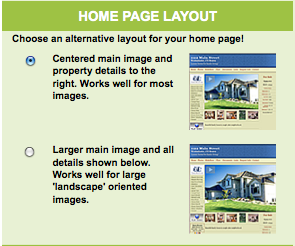
There are two main layouts that you can choose for your single property sites. One consists of a centered main image with property details on the right of the page, and another consists of a larger main image with property details below. You can also choose how your contact details will be shown on the site as well.
There are 2 ways to set this up:
1) Choose the layout when setting up a brand new listing.
When you are adding a new listing using the setup wizard, you will be taken through all the necessary steps to set up your site. In the third stage of the setup process, you will be asked to choose your site layout (pictured at right). You can choose to show your office logo on every page, how your contact info appears, and how you want the home page to look. Simply choose the options that suit your needs and click on the save and continue button.
2) Edit the layout of a site you have already created.
If you have already set up a single property site for a listing, it is very easy to change its layout.
Simply navigate to the Manage Sites tab (in the top navigation of your user dashboard).
Find the site you want to change under the My Sites tab, and click the “EDIT & Promote” link.
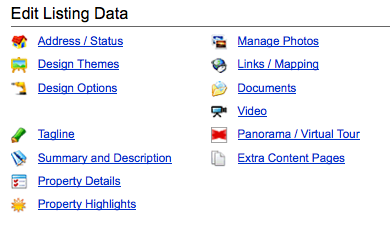
On the left hand column of the Edit and promote page, you’ll see a link called “Design Options” (pictured below). Simply click on this to choose different layout options and save your changes when you are done.