
Four Features You Might Not Know About in SPS

We get a lot of feedback from users about features they’d like to see included in Single Property Sites, and we’re always looking to enhance our product. But occasionally we find some features customers request are already included in our ProSPS system! Here are four different things you can do with your SPS account that you might not know about yet.
1. Embed a Video in Your Single Property Sites
More and more agents are starting to use video as part of their listings marketing, as new technology like the FlipCam makes it more easy and affordable to record and edit video. We get a lot of agents asking if they can include video on their Single Property Sites, and the answer is YES.
SPS makes it easy to put video online. The first step is to choose a host for your video – SPS is compatable with nearly every major video hosting service online, including Youtube, Google Video, Vimeo, Real Estate Shows, WelcomeMat, and many more. Once your video is hosted on one of these video-sharing sites, it’s time to login to SPS and edit your site.
You’re looking for the Video icon under the “Photo” menu in the SPS site wizard…it looks like this:
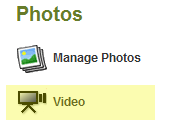
Once you’re in there, you’ll have the option to embed your video from the hosting Web site. This is a simple procedure that takes a minute or less to complete. Just select your video service, paste the “snippet” of code the service will provide you into the box, and choose where you’d like your video displayed. You can add the video to the menu and home page of your Single Property Site. It even can replace your main photo if you’d like!
2. Add Google Analytics for More Advanced Tracking
Google Analytics is the Web’s leading free statistics package for Web sites. It lets you track in great detail the habits and statistics about your visitors as they move through your Web sites.
SPS includes some analytics functionality that lets you share basic statistics with your buyers, but we also give you the option of including Google Analytics for more advanced analysis and tracking. To start, sign up for Google Analytics. Once you’re done, you’ll receive a profile ID (something like UA-123456-3). Take note of this number.
Now, login to your SPS account and choose one of your sites to edit. You’re looking for the “Web Site Statistics” button, which looks like this:
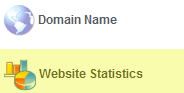
Click through, and look for the link that says “Setup Google Analytics”. You’ll have the option to enter your profile ID and start tracking.
We’ll put together a post on how to use Google Analytics at a later time, but it gives you the option of tracking all sorts of statistical data about your visitors – their locations, the time they spend on the site, the information they’re looking at and so forth. It’s a goldmine for agents, and SPS makes setting it up easy!
3. Get a Sign Rider for Your Property
If you’re not getting a sign rider with your property, you’re only unlocking part of the functionality with your Single Property Site! A sign rider makes promoting your Web site easy. It includes the domain name for your property in a sturdy, attractive sign rider so you can start capturing more drive-by traffic. And now, with our new SPS Mobile Marketer, you’re able to include SMS Text Flyers on your sign riders, too!
Getting a sign rider is an easy process. The first step is to purchase the domain name for your Single Property Site. This serves as the Web address for your property, and it’s what will be included on your sign rider so make it memorable! Typically, agents use the street address for the property, but it can be anything you want.
As soon as you purchase your domain name, the option to purchase a sign rider will become available. You’re looking for the icon that looks like this in your control panel:

We will deliver you a 6″ x 24″ or 6″ x 18″ solid, bright-white, flexible plastic board (about 4mm thick) that goes on top of your For Sale sign, directing customers to your Single Property Site for this property. As soon as you order, we’ll produce your sign within one business day, and you’ll receive it within four to five business days.
4. Create E-mail Flyers
This is one feature we’re working on adding to your Single Property Site control panel, but there’s a workaround for creating e-mail flyers right now: you’re able to create e-mail flyers using our Craigslist Autoposter.
Start by going into your Feeds and Promotion Wizard:

Now, look for the Craigslist Autopost tab at the top of the page. Click this, and you’ll get our wizard for promoting on Craigslist. Proceed as normal, entering an e-mail address, the city in which you’d like to post, and choose “Plain HTML” for your code option. Choose Save and Continue, and SPS will automatically open up a Craigslist window for you to complete the posting.
Here’s where things are different.
Instead of posting to Craigslist, you’re going to take the code our system generates and use that for your e-mail flyer! Simply copy (Ctrl+C) the code in the property description box and save it somewhere on your computer. The box looks like this:
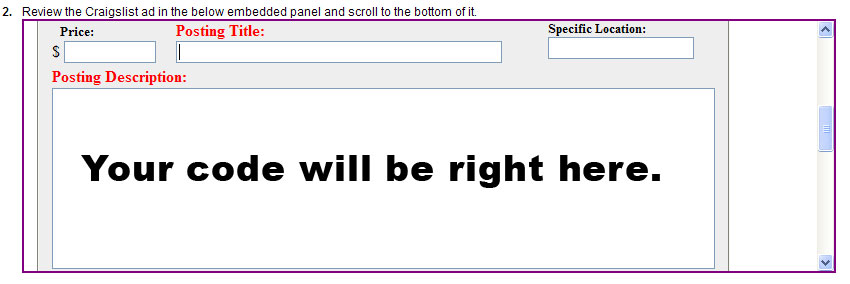
This code typically is used to present your Single Property Sites on Craigslist, but it works just as well for an e-mail flyer! Just paste this code into a new e-mail in your favorite e-mail client and you can start sending gorgeous e-mail flyers to all your potential leads!
What other questions do you have about SPS? Send me an e-mail and I’ll be sure to get back to you immediately. You might even get it answered in a future blog post!
Not an SPS member yet? No problem! Click here to get your free account.


